
Scan-IT to Office FAQ
How to Send Form Data to Different Sheets
How to Send Form Data to Different Sheets
Sometimes you may want to create multiple forms and send each form to its own sheet in your spreadsheet.
This can be solved with a Macro in Excel or with Google Apps Script in Google Sheets.
By adding a Static Text field with a category identifier to your forms the Macro/Script can identify the category of the captured data and move it to the desired sheet automatically.
Scan-IT to Office APP:
- Add two new forms or edit your existing forms and add a “Static Text” field to each form.
- Set the values of the “Static Text” fields to your desired category names
(in this example we used “Cat1” and “Cat2”). - Make sure the “Static Text” field is the first field in your forms.
- You may also want to hide the “Static Text” fields.
Microsoft Excel:
- Download the sample spreadsheet and open it in Excel.
- Insert the Scan-IT to Office Add-In.
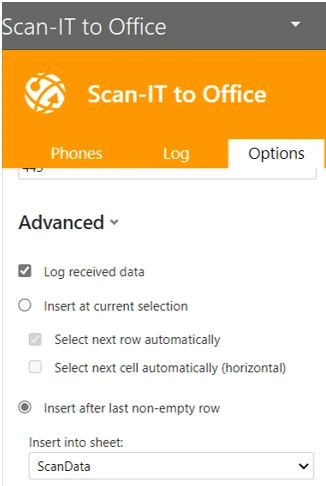
- Select “Insert after last non-empty row” in the Add-In options and make sure “ScanData” is selected.
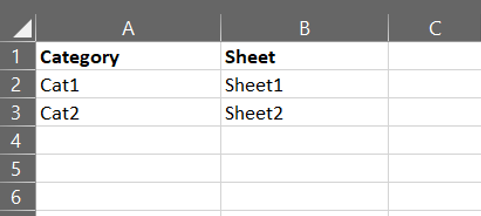
- Open the “Categories” sheet and change the values under “Category” to match the values of the “Static Text” fields.
- If you want to rename your Sheets you also need to change the values under “Sheet” accordingly.
- Note: Do not rename the “ScanData” sheet and the “Categories” sheet otherwise the Macro will stop working.
Google Sheets:
- Open our sample spreadsheet.
- Choose File -> Make a copy to make an editable copy of the sample.
- Open the script editor select Tools -> Script editor.
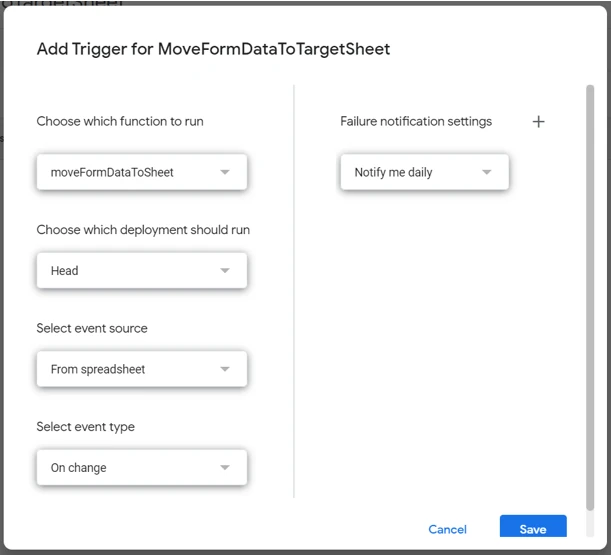
- In the script editor add a new trigger to the sheet
Edit -> Current project’s triggers -> + Add Trigger
Change the “Select event time” to “on change” and save the changes. - Insert the Scan-IT to Office Add-On into the spreadsheet or connect to the “ScanData” sheet via Google Sheets (Drive) connection.
- If you are using the Add-On select "Insert after last non-empty row” in the Add-On options and make sure “ScanData” is selected.
- Open the “Categories” sheet and change the values under “Category” to match the values of the “Static Text” fields.
- If you want to rename your Sheets you also need to change the values under “Sheet” accordingly.
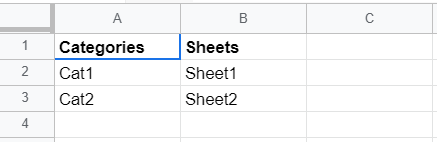
- Note: Do not rename the “ScanData” sheet and the “Categories” sheet otherwise the Google Script will stop working.