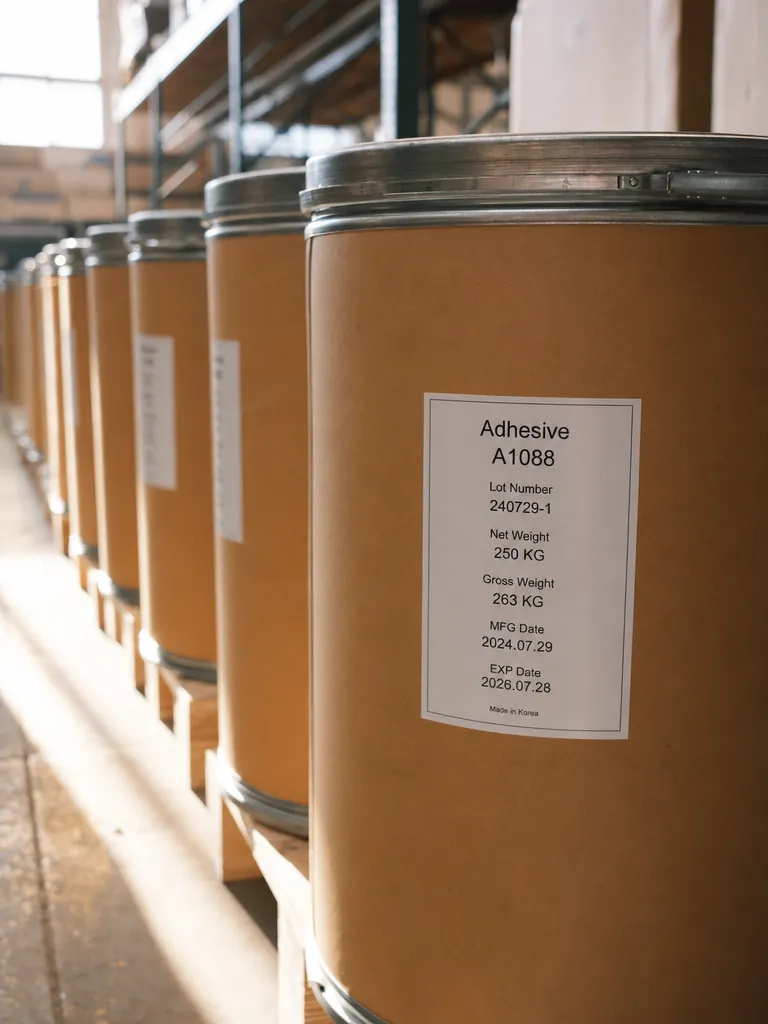
Label the locations
Racks, bins, zones and containers get durable, scannable codes printed from one template set.
New: TFORMer Designer V9.2 — easily design and print labels and forms. Explore the product →

Warehouse & Inventory
Bin labels, location codes and validated scans that reach your system without a keyboard.


Inventory accuracy is a data-entry problem wearing a logistics costume. TEC-IT removes the keyboard from the loop — printing the location and bin labels, capturing the scans, and delivering validated data into Excel, your WMS or your ERP.
Bring scans directly into the inventory system you already use.
A transposed digit at goods-in becomes a phantom pallet three weeks later. A stock count on a clipboard is a stock count that gets re-keyed twice. And the fix usually proposed — a full WMS rollout — is a year of work for a problem that starts at the point of capture. TEC-IT starts there instead: printed location and bin labels, scanning straight into the system you already run, and validation that rejects a malformed code before it becomes an inventory adjustment.

Racks, bins, zones and containers get durable, scannable codes printed from one template set.
Handheld scanners, smartphones or a keyboard wedge — including offline, syncing when the device reconnects.
Scans arrive validated in Excel, Google Sheets, your WMS or your ERP, ready to post.
Finning Chile
“Scan-IT has transformed how our teams work in remote mining environments.”
Waldo Vasquez Parga, Technology Leader, Logistics & Warehouse Area, Finning Chile
Read customer story ›Location codes, counts and printing as one system.

Bin, shelf and tote layouts are designed once and reused across every aisle and site.

Each location and count is checked against format before it updates stock.

Send bin, tote and pallet jobs to the device assigned to that warehouse zone.
Every solution maps to proven, licensable products.
Sends mobile barcode scans straight into Excel, Word and Google Sheets — including offline.
Feeds handheld scanner and scale input into the WMS as keystrokes or background events.
Prints location, bin and pallet labels without programming.
Scans barcodes, text and NFC directly into any Android application.
Capture to system
Scanning, printing and data flows plug into WMS, ERP and spreadsheets alike.
The count you scan is the count the system trusts.

A location scan updates stock in the WMS immediately — no end-of-shift reconcile.

The number is committed as it is scanned, not re-keyed later.

A new zone counts and posts the same way from day one.
How companies run identification, labeling and data capture on TEC-IT software – in production, logistics and IT.
Learn more about Warehouse & Inventory Tracking.
Solution: TWedge provides the function WriteToDevice () for this purpose. WriteToDevice () accepts two parameters:
The following example sends two lines of text: The first line prompts the device for accepting the username, the second line sends the username. Each line is terminated by a newline character (\n line feed):
WriteToDevice ("user\n", 1000);
WriteToDevice ("sysadmin\n", 1000);
Solution: For this purpose TWedge provides the Javascript member function WriteData (). This function exists in two variants with different parameters.:
The following example sends data one time as binary array and one time as string. Inside of a string you can encode a line feed with the escape sequence \n:
var arrSend = [0x48, 0x65, 0x6c, 0x6c, 0x6f];
hConn.WriteData (arrSend, 200);
hConn.WriteData ("Hello\n", 1000);
hConn is the actual connection object.
The App inserts data according to so called "Simulation Rules" (see cog wheel ⇒ Scanner Keyboard Preferences ⇒ Keyboard Behavior). Simulation rules allow you to customize the simulation/keyboard behavior for a specific target application. The "Default" rule is applied if no specific rule is available.
The app scans a code, makes the sound, but doesn’t put any text in the textbox? Some target apps require a different method to accept simulated keystrokes. Scanner keyboard offers two methods for this purpose. To insert data into some apps (especially web-based apps or browsers), enabling the option “Key by Key” in the corresponding simulation rule might be required.
If there is a problem, please try the following steps:
If it doesn’t help, the problem might be time-related. You could try adding a Wait command before data insertion with the following steps:
${WAIT900}${INPUT}
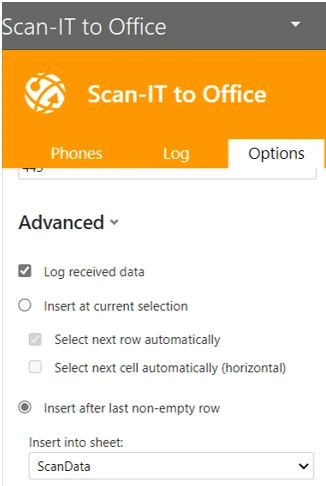
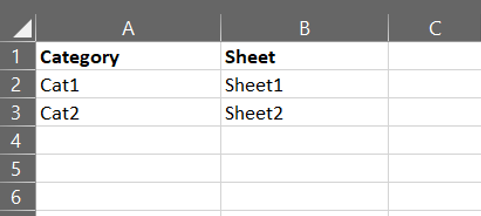
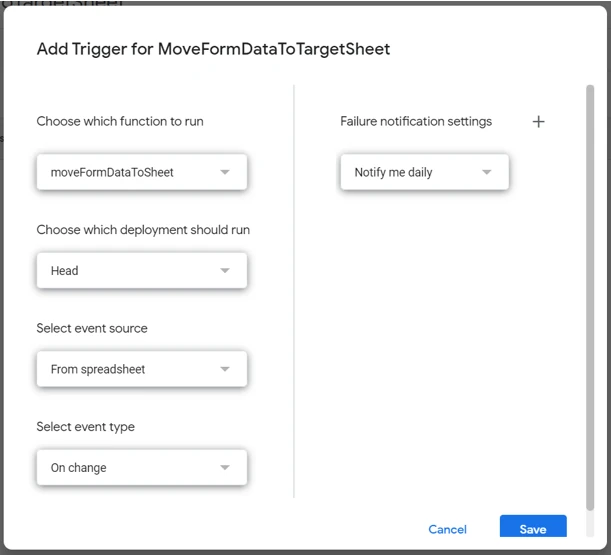
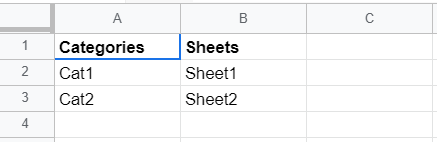
Sometimes you may want to create multiple forms and send each form to its own sheet in your spreadsheet.
This can be solved with a Macro in Excel or with Google Apps Script in Google Sheets.
By adding a Static Text field with a category identifier to your forms the Macro/Script can identify the category of the captured data and move it to the desired sheet automatically.
Problem: My USB Device (Virtual COM Port) loses connection when not used for a while.
Power management is a common cause of USB-connected device issues. To save power, Windows automatically shuts down the power to USB ports. This may cause problems with auxiliary devices and leads to a connection loss if you don't use the device for a while.
Workaround: Here are some measures, which you can try step by step until the problem disappears:
a) Prevent Windows from Turning Off USB Devices
b) Motherboard: If your BIOS has a setting 'Deep Sleep Control', then disable it.
c) Turn off the "hybrid sleep option" (if available):
d) Turn off "USB selective suspend" (if available):
Guidance on keyboard wedge, services, serial and USB input for WMS workflows.
GuideReview EAN, UPC, Code 39 and related symbols used on bins, items and shipping units.
Customer storyLearn how the Caterpillar dealer connects round-the-clock barcode workflows directly to ERP data.
Try it free in the browser, download a full trial, or talk to sales about your systems, standards and volume.
We use cookies for marketing and to improve your experience. Read our Cookie Policy or manage cookies.