
FAQ: TBarCode Office Excel Add-In
How To Create a Swiss QR Code
How To Create a Swiss QR Code
Swiss QR Code is available in TBarCode Office V11 - follow the link and download the new version.
Below we give you instructions on how to create Swiss QR Code 2.3 in a serial letter:
- Download the Excel Sheet for Swiss QR Bills (click the link). The sheet contains calculated columns, which create the data format for the Swiss QR Code 2.3 payment standard.
- Enter the payment information into columns A - Q.
Note the calculated columns SwissQRCode_Part1, SwissQRCode_Part2 and SwissQRCode_Part3, which will contain the bar code data for the bar code add-in. There are also more calculated columns at the right, which are used to validate your input. Line Feeds are encoded through the \n escape sequence.
- In your Word mail merge document, select the Excel sheet as data source for the mail merge.
- Open TBarCode Panel, select Swiss QR Code and add the serial field placeholders via Insert Fields as shown below:
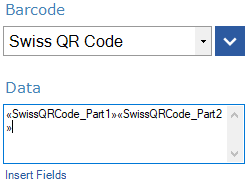
We split the data content into multiple fields, because in the serial letter you are limited to 255 characters in a single field. In the barcode this will be put back together correctly. The field SwissQRCode_Part3 is required if further data is coded after the EPD (Bill-Info, AV Parameter 1, AV Parameter 2).
TBarCode Office is the perfect solution for serial letters. If you only need to create a few Swiss QR Codes per year, you may create them also with our Swiss QR Bill Online Generator.