
FAQ: Product Licensing, Applying the License Key
Android
Android
Android users must use a special app version that is available in Managed Google Play or on the TEC-IT download page. The public Google Play version is not suitable for bulk licensing.
For detailed requirements, please refer to the respective product FAQ pages:
Single Device
To activate a bulk license (volume license) on a single Android device manually, follow these steps:
(Alternatively you can also use the activation file from your license e-mail - see below!)
- Start the app.
- Open the Settings, section License State, and open the license/subscription view.
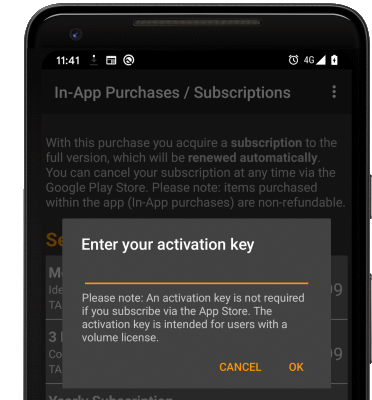
- In the license/subscription view, select Enter activation key from the menu. A dialog will appear, asking for your activation key (see picture).
- Enter your valid activation key and confirm with OK.
- If the activation was successful, the view is updated accordingly and the expiration date of the bulk license is displayed.
Multiple Devices
To activate a bulk license on multiple Android devices via a Mobile Device Management system, follow these steps:
- You can use Managed App Configuration to activate multiple devices via your Mobile Device Management (MDM) solution.
- Please contact your MDM vendor for a documentation on how to configure Managed App Configuration in your MDM solution.
- If your MDM solution does not automatically recognize the Managed App Configuration, please use the following structure:
Key = tecit.activation
Type = bundle
Key = activationCode
Type = string
Value = <Your Activation Key>
Activation File
You can also import the activation data from file. You will find such an activation file attached to your Scan-IT to Office invoice e-mail.
For manual import (on a single Android device) follow these steps:
- Copy the activation file to your device (e.g., to the Download folder).
- Start the app.
- Open the Settings, section License State, and open the license/subscription details.
- In the license/subscription details select Load license file from the menu and use the file picker to select the file.
- If the activation was successful, the view is updated accordingly and the expiration date of the bulk license is displayed.
For auto-import (on multiple Android devices) place the TEC-IT activation file in one of the supported folders on the device. The app validates the license during startup (or when you open the license/subscription view).
For supported auto-import folders, please refer to the respective product FAQ pages:
- Scan-IT to Office: Auto-Import License and/or Settings File
- Scanner Keyboard: Auto-Import License and/or Settings File