
FAQ TBarCode .NET
Why I See a Different Font in EPS and AI Export?
Why I See a Different Font in EPS and AI Export?
TBarCode SDK does not embed the fonts into EPS and AI. It just references the font by specifying the font name. So it depends on the output device or graphics suite if the font is available and how the font is rendered.
For EPS only font names which are standard in PostScript or font names, which do not contain any blanks/spaces in the referenced font name are allowed.
EPS: In order to avoid problems on printers, which do not have Arial installed, we convert references to Arial always to Helvetica, which looks similar and is a standard PS font (available in all printers). If this is not desired, you have an option, which controls if there is a font replacement applied or not. This is the UseDeviceFonts option.
Here is sample code for EAN13 SC2 – 100%:
Export to EPS with Standard Postscript Fonts (Arial ⇒ Helvetica)
Barcode barcode = new Barcode();
barcode.BarcodeType = BarcodeType.Ean13;

barcode.BoundingRectangleF = new RectangleF(0, 0, 37.29F, 25.91F); // SC2 size
barcode.SizeMode = SizeMode.CustomModuleWidth;
barcode.ModuleWidth = 0.330F; // SC2 module width

barcode.Data = "123456789012";
barcode.Font = new Font("Arial", 9);
barcode.UseDeviceFonts = true;

barcode.Draw("c:\\temp\\TestFile.eps", ImageType.Eps);
barcode.Draw("c:\\temp\\TestFile.ai", ImageType.Ai);
If you open the exported EPS file with a text editor, you see Helvetica instead of Arial:
      /Helvetica findfont

      9.0000 scalefont setfont
This is how it looks if you open the EPS file with a PostScript viewer (like GSView):
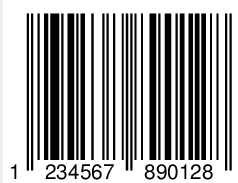
If you open the exported AI file with a text editor, you see:
      %%IncludeResource: font ArialMT

      %AI3_BeginEncoding: _ArialMT ArialMT

      [/_ArialMT/ArialMT 0 0 1 TZ
Export to EPS and Keep the Adjusted Font (Arial ⇒ Arial)
The printer or the graphics software must support “Arial”! Font names must not contain blanks/spaces!
Barcode barcode = new Barcode();
barcode.BarcodeType = BarcodeType.Ean13;

barcode.BoundingRectangleF = new RectangleF(0, 0, 37.29F, 25.91F);
barcode.SizeMode = SizeMode.CustomModuleWidth;
barcode.ModuleWidth = 0.330F;

barcode.Data = "123456789012";
barcode.Font = new Font("Arial", 9);
barcode.UseDeviceFonts = false;

barcode.Draw("c:\\temp\\TestFile.eps", ImageType.Eps);
barcode.Draw("c:\\temp\\TestFile.ai", ImageType.Ai);
If you open the exported EPS file with a text editor, you see:
      /Arial findfont

      9.0000 scalefont setfont
If you open the exported AI file with a text editor you see:
      %%IncludeResource: font Arial

      %AI3_BeginEncoding: _Arial Arial

      [/_Arial/Arial 0 0 1 TZ
Summary
In order to use the adjusted font for the export, you can set UseDeviceFonts = false. It depends also what you want to do with the EPS file. If you want to send the file just “as is” to a printer or printing system, it is maybe better to use Helvetica with UseDeviceFonts = true. We recommend to try printing first before you make a decision about DeviceFonts.
PDF Export without HRT
For PDF export, there is no font rendering included in the TBarCode SDK - that is why you don’t get any font or text output if you chose PDF export format.
If you need PDF export with font embedding, you may use our TFORMer Label Printing SDK. The TFORMer SDK supports the same barcodes as the TBarCode SDK. Or - you can also use Barcode Studio in command line mode – you call BCStudio.exe from your own program code and pass the barcode data and file name to BCStudio (for the available command line parameters see the BCStudio user manual). Alternatively - if you want to use PDF libraries from third party vendors, you may use the Callback drawing mechanism of TBarCode SDK – here you get the coordinates of the bars and of the text and with these coordinates you implement the barcode with the drawing and font / text rendering functions of the PDF library. Samples for how to use the Callback drawing are included in the SDK.